Copying Values
You can select and highlight values from multiple columns and rows in the Document Grid View and then copy the values with or without headers. Additionally, you can choose to copy the values in different delimiter formats – such as Concordance, Tab, or Comma (CSV) delimited. These selected values can then be pasted to another application, such as Notepad or Excel, as well as be copied back into ReadySuite from your clipboard.
Example
A user might select data on the Document Grid View and copy it by selecting Copy Values > As Tab Delimited. The user could then paste the data into Excel and update the data (by using Find and Replace, for example). This updated data can be selected and copied in Excel, then returned to the Document Grid View by selecting Paste Values on the selected data's shortcut menu.
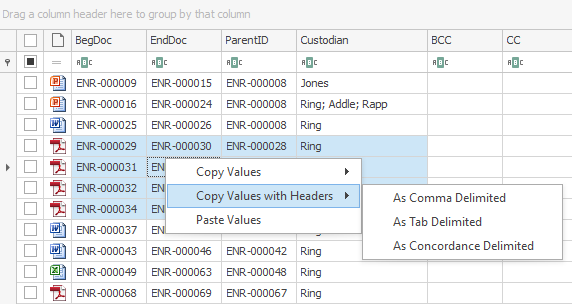
To copy values in the Document Grid View
- In the Document Grid View, highlight the columns and rows you want to copy.
- Right-click the highlighted data and select from the following:
- Copy Values: Save to clipboard the selected highlighted fields.
- Copy Values with Headers: Save to clipboard the selected highlighted fields, as well as the name in the header of the column of each selected field.
- Select how you want to delimit each selected column from the following:
- As Comma Delimited: The contents of the copied columns are separated by a comma with quotes.
- As Tab Delimited: The contents of the copied columns are separated by a tabbed space.
- As Concordance Delimited: The contents of the copied columns are separated in a DAT file format.
- To paste values into the Document Grid View, right-click the highlighted data you want replaced and select Paste Values.