Redacting Documents
You can batch redact or crop imported documents using the Redact Images wizard.
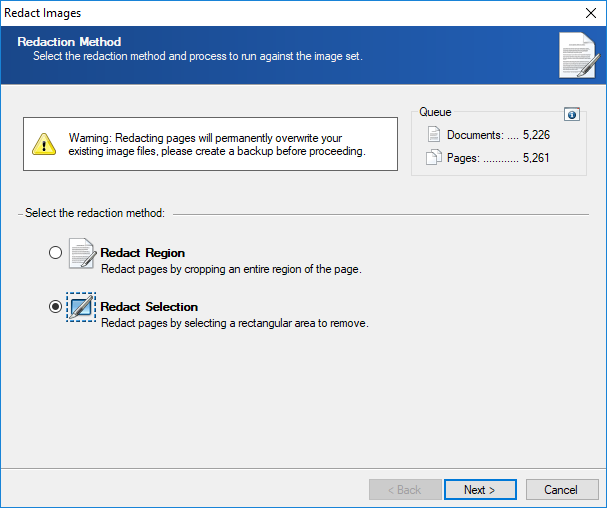
Note: Existing files will be overwritten during the redaction process. Please create a backup before proceeding.
To crop images
- On the ReadySuite ribbon, click Process > Redact Images to open the Redact Images wizard.
- Select Redact Region and click Next.
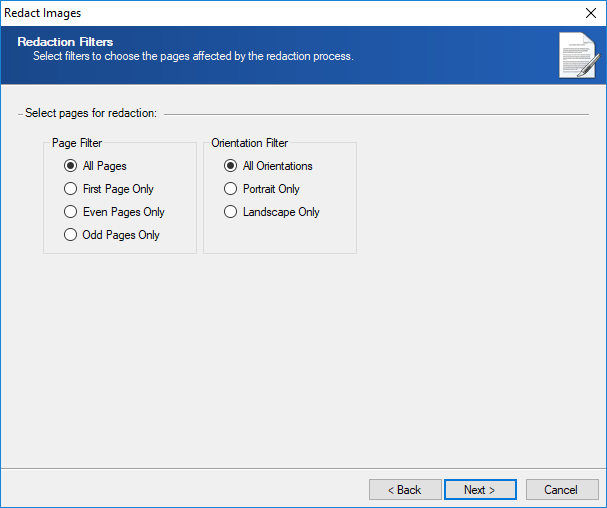
- On the Redaction Setting page, select any Page Filter or Orientation Filter you want to apply.
- Page Filter: Apply redactions to All Pages, First Page Only, Even Pages Only, or Odd Pages Only.
- Orientation Filter: Apply redactions to All Orientations, Portrait Only, or Landscape Only.
- Click Next.
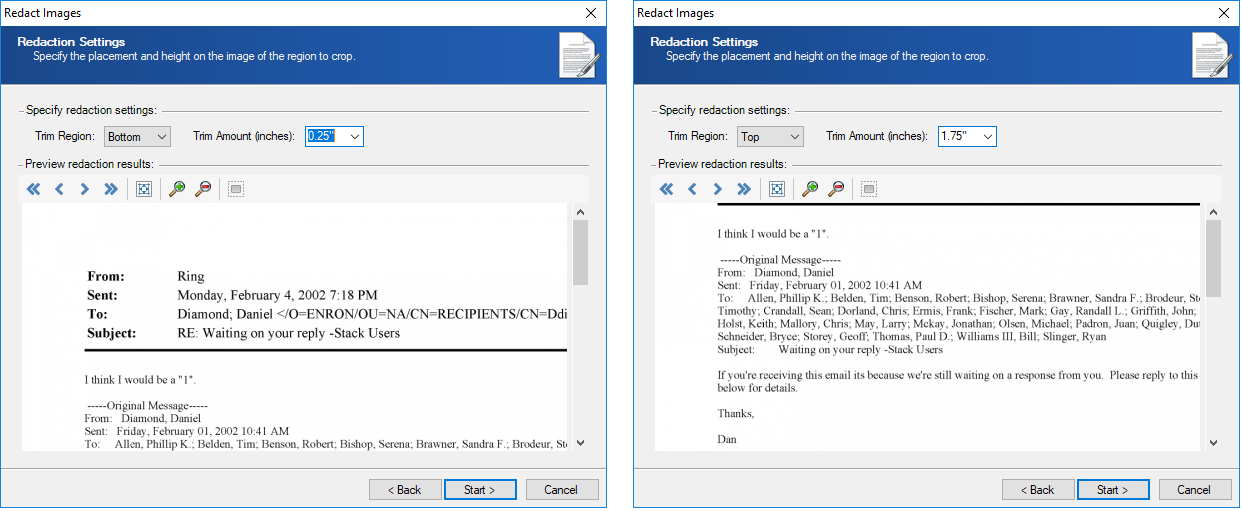
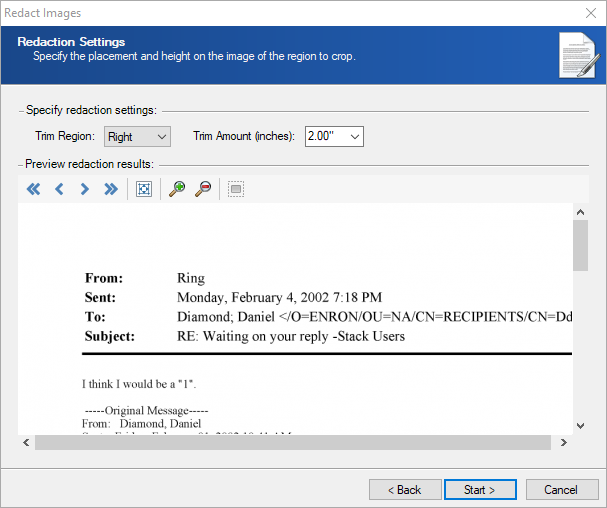
- On the Redaction Settings page, select the location and size of the area you want to trim from the image
- Trim Region: Select Top, Bottom, Left, or Right.
- Trim Amount (inches): Choose between 0.25" to 2.00" in half inch increments.
- Preview redaction results with the following icons.
- Click Start.
- Click Finish.
Note: The original size of the image will be retained during this process.
To redact images
- On the ReadySuite ribbon, click Process > Redact Images to open the Redact Images wizard.
- Select Redact Selection and click Next.
- On the Redaction Setting page, select any Page Filter or Orientation Filter you want to apply.
- Page Filter: Apply redactions to All Pages, First Page Only, Even Pages Only, or Odd Pages Only.
- Orientation Filter: Apply redactions to All Orientations, Portrait Only, or Landscape Only.
- Click Next.
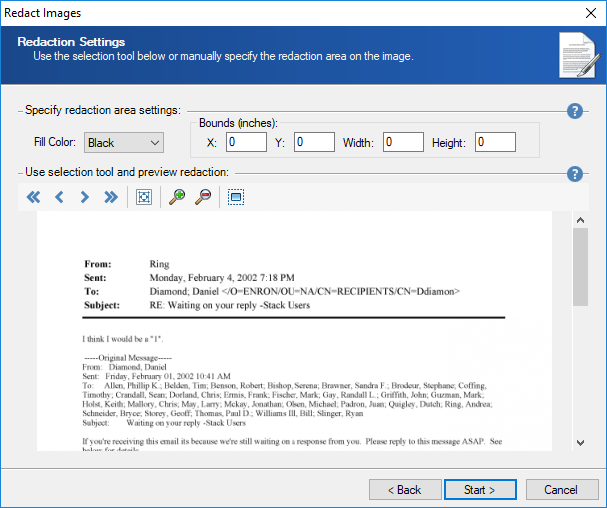
- On the Redaction Settings page, select the Fill Color of the redaction.
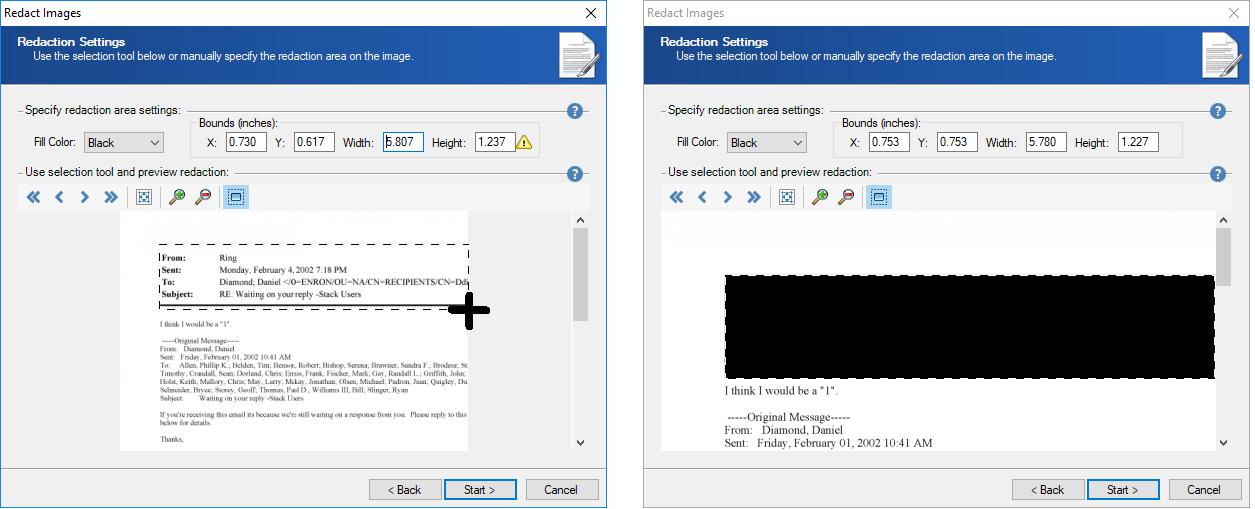
- Click the Redact Area tool and drag a rectangle on a page over the area you want to redact.
- X: Starting X coordinate from the upper left-hand portion of the page.
- Y: Starting Y coordinate from the upper left-hand portion of the page.
- Width: The width (in pixels) of the rectangle.
- Height: The height (in pixels) of the rectangle.
- Preview redaction results with the following icons.
- Click Start.
- Click Finish.
Note: You may either use the selection tool in the preview pane or enter the area manually.