Configuring ReadyLicense
Install ReadyLicense on a single machine accessible by all other machines that ReadySuite will be installed on.
To open ReadyLicense
- On the Start menu, select Compiled > ReadyLicense.
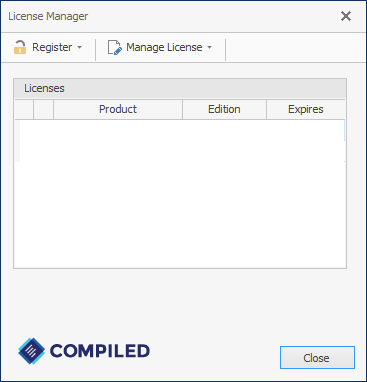
- On the License Manager dialog box Register drop down list, select Install Serial.
- Enter the License Key provided to you by the ReadySuite Sales or Support Team. (This would have been e-mailed to you when you requested a trial license or purchased a license from our store.)
- Click Install.
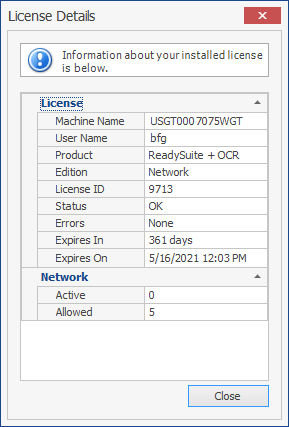
- Right-click on the license and select Details.
- On the License Details dialog box Network section. view the number Active and Allowed licenses.

License Status: Indicates if the license is currently installed.
Computer ID: Your license key will be tied to this computer ID.
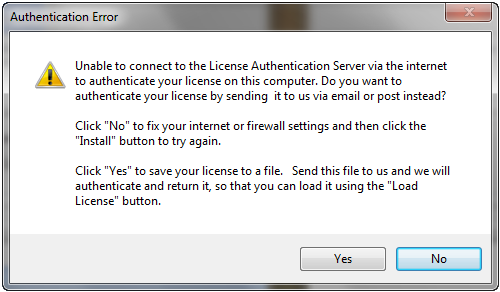
Note: If the installation process fails, the Authentication Error message box enables you to save a license key (.lic) file for offline authorization. Click Yes to save this file to a location on your computer (such as your desktop) and attach it to an e-mail to our sales team at readysuite@ediscovery.com. We will provide you with an authenticated license file once received.
Alternatively, you can use our offline license site to activate the license file:
http://authentication.compiled.com/AuthenticateFile.aspx
To connect ReadySuite to the licensing service (ReadyLicense)
- On the ReadySuite Options page menu bar, click License.
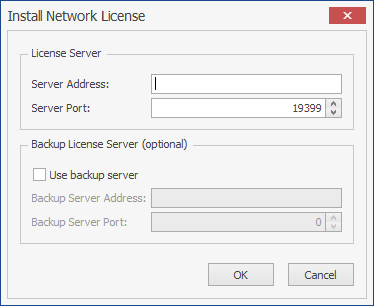
- On the License Manager dialog box, click the Register drop list and select Install Network.
- On the Install Network License dialog box License Server section, enter the Server Address (IP address or machine name) of the licensing service (ReadyLicense).
- Click OK.
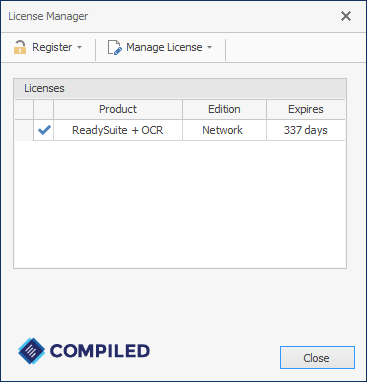
- To verify the license is active, on the License Manager dialog box, tight-click on the license and select Details. On the Licencse Details dialog box Network section. view the Active license.