Install License
You can install the ReadySuite license as a serial license key or a network key.
Note: The network license option requires the network servicing license (ReadyLicense), that is a separate add-on requiring five or more licenses to utilize. Contact your sales representative at readysuite@ediscovery.com for more information.
- On the License Manger dialog box, click Register > Install Serial.
- On the Install ReadySuite Licenses dialog box, enter the License Key provided to you by our sales team and click Install. Our servers will validate the license key is valid and can be installed.
Note: We recommend copying and pasting the serial to the License Key box.

License Key: Enter the key provided by our sales team here. This would have been e-mailed to you when you requested a trial license or purchased a license from our store.
License Status: Indicates if the license is currently installed.
Computer ID: Your license key will be tied to this computer ID.
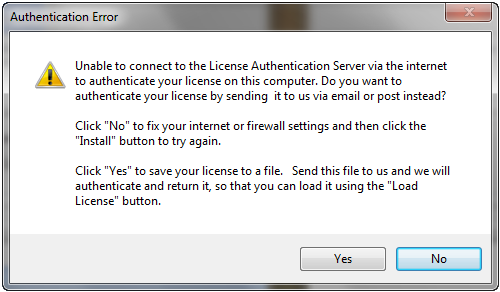
Note: If the installation process fails, the Authentication Error message box enables you to save a license key (.lic) file for offline authorization. Click Yes to save this file to a location on your computer (such as your desktop) and attach it to an e-mail to our sales team at sales@compiled.com. We will provide you with an authenticated license file once received.
Alternatively, you can use our offline license site to activate the license file:
https://authentication.compiled.com/AuthenticateFile.aspx
To install a network license (ReadyLicense)
- On the License Manger dialog box, click Register > Install Network.
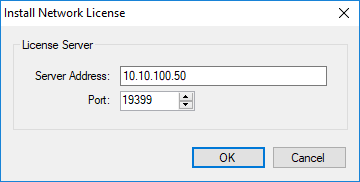
- On the Install Network Licenses dialog box, enter the Server Address of and Port of the machine running ReadyLicense and click Ok. Our servers will validate the license key is valid and can be installed.
To view the status a license (active connections)
- On the License Manger dialog box, click Manage License > Status.

To delete a license
- On the License Manger dialog box, do one of the following:
- Click Manage License > Delete.
- Right-click the license you want deleted and select Delete.
- click Manage License > Delete.
- On the Install Network Licenses dialog box, update the Server Address and Port as needed and click Ok.
To modify a network license
- On the License Manger dialog box, do one of the following:
- Click Manage License > Modify.
- Right-click the license you want modified and select Modify.
- On the Install Network License dialog box, update the Server Address and Port as necessary and click Ok.
To view details about the license in use
- On the License Manger dialog box, click Manage License > Details.
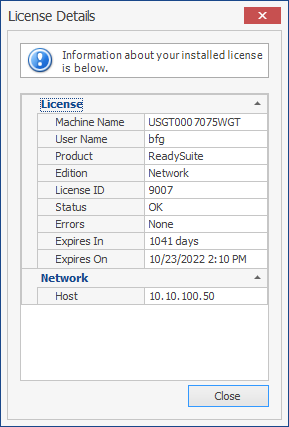
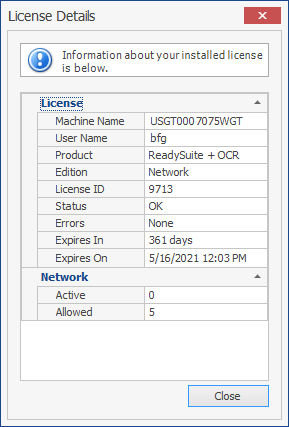
- In the License Details dialog box, view information about the installed license.
- Example of details for a license key
- Example of a network license