New Project
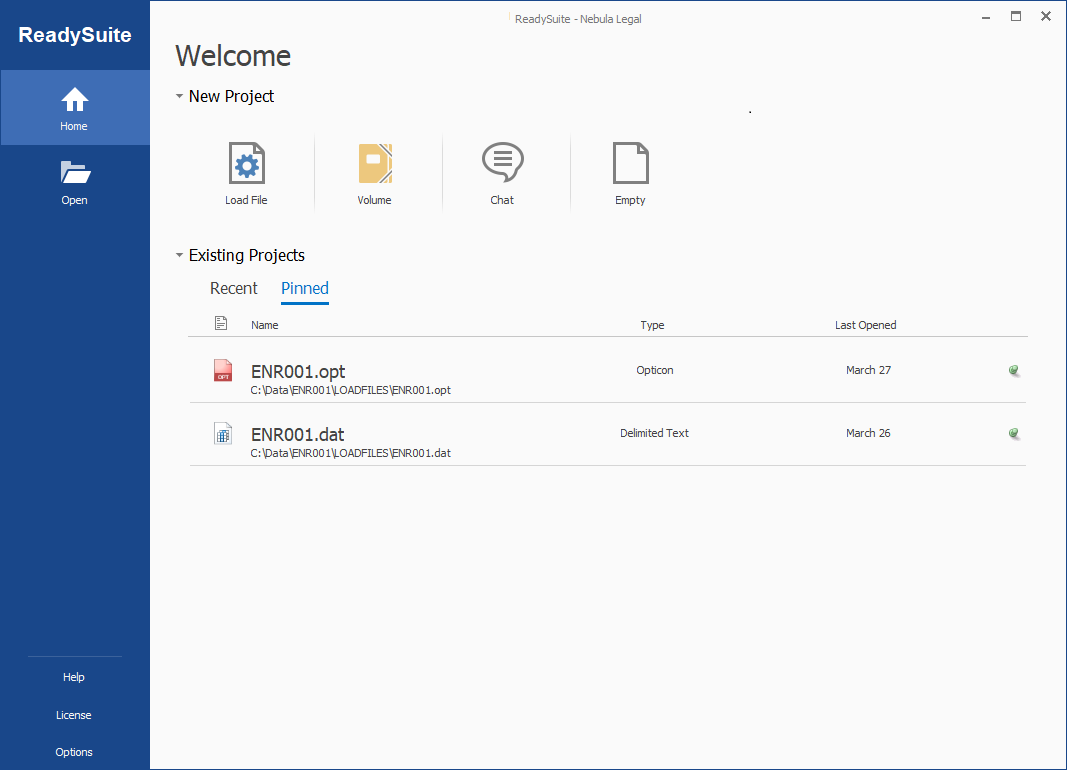
The Welcome page appears when you first open ReadySuite, enabling you to start a new project or open an existing one.
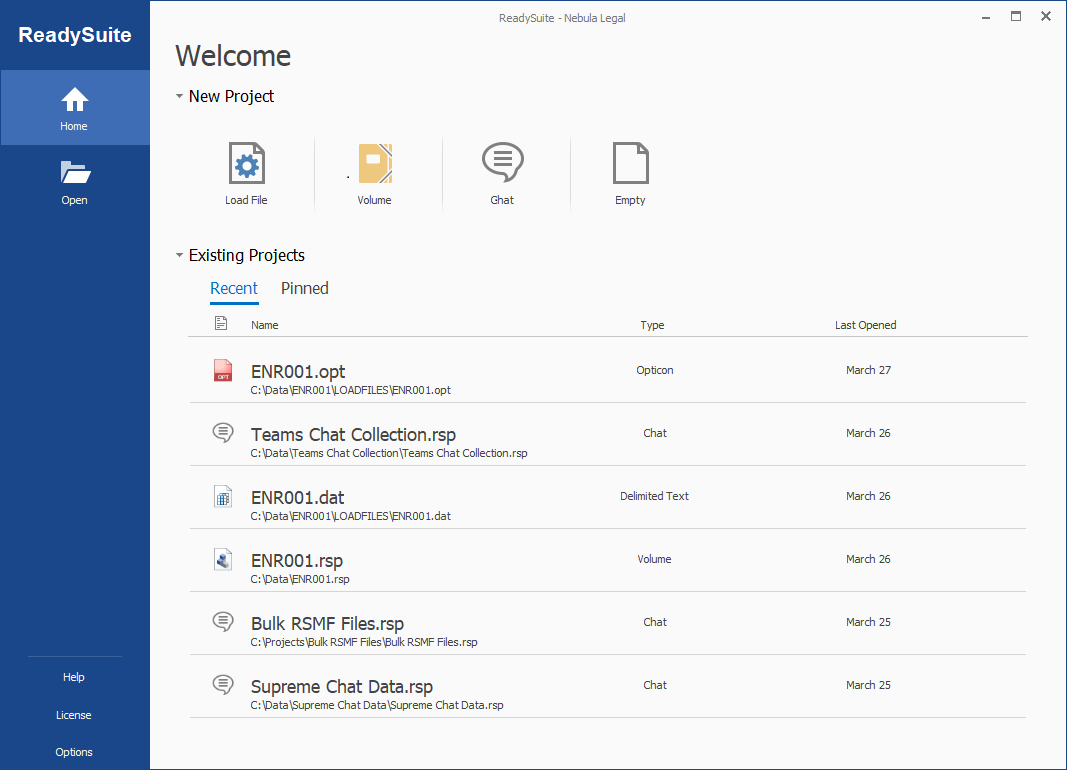
Home: Returns to the Welcome page.
Open: Opens the Open dialog box to open a file in ReadySuite.
Info : Displays information about a ReadySuite project, including its file path and properties, and enables you to change the project name, validate a project (open the Check Resources wizard to check for issues with the project resources) and manage the project (manage project properties and storage selection to open or move the project path)
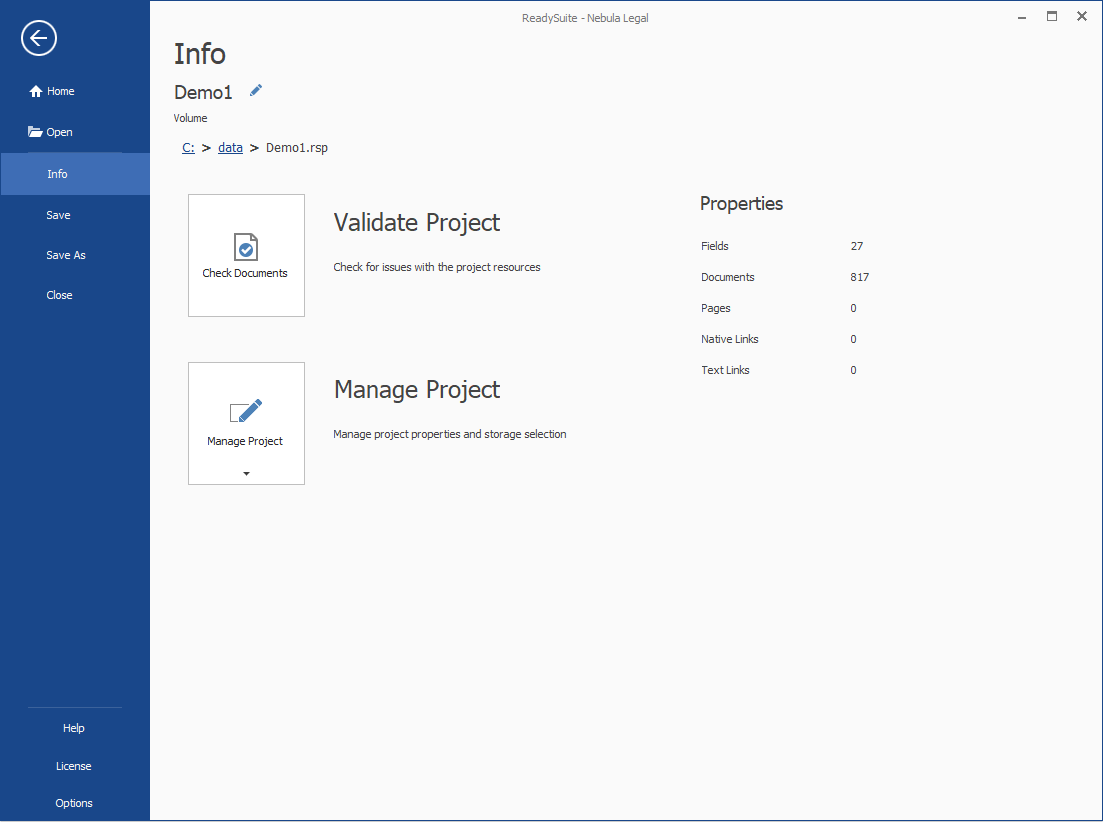
Save: Saves the current ReadySuite file or project.
Save As: Opens the Save As dialog box to save the current ReadySuite file or project at another location, with a different file name, or as a different file type.
Close: Removes the current project from ReadySuite.
Help: Opens the Help
Support
- ReadySuite Help: Opens the online ReadySuite Help.
- Getting Started: Opens the online ReadySuite Help at the Getting Started topic.
- Contact Us: Opens the Contact Us page of the Compiled website.
Tools for ReadySuite
- Register: Opens the License Manager dialog box.
- Options: Opens the ReadySuite Options dialog box.
- Check For Updates: Verifies that most current version or ReadySuite is running.
- See What's New: Opens the ReadySuite Updates dialog box.
- License: Opens the License Manager dialog box.
- Options: Opens the ReadySuite Options dialog box.
New Project
- Load File: Opens the Load File project screen.
- Volume: Opens the Open Volume project screen.
- Chat: Opens the Chat Project screen. If long path support is not active, a Missing Long Path Support dialog box appears informing you that file paths used by ReadySuite are limited to a maximum of 260 characters, which may cause issues with the extraction of chat data.
- Empty: Opens ReadySuite at ReadySuite’s main window where you can import files into ReadySuite by either dragging in the top- level folder containing the resource files or open an import wizard from the External Data tab.
Existing Projects
- Recent: Displays Recent Projects (history of projects opened in ReadySuite) loaded and Recent Places (history of files imported to ReadySuite).
- Pinned: Displays projects that have been pinned on the Recent list for easy access.